
MCP Server Integration
Connect AI assistants like Claude to your Mudrex trading account using the Model Context Protocol
What is Mudrex MCP Server?
Mudrex MCP Server is an MCP compatible server that exposes Mudrex Trading API functionality through the MCP. This allows AI assistants and developer tools that support MCP to interact directly with Mudrex trading features.
Through the Mudrex MCP Server, users can fetch account data, place and manage orders, access market data, manage positions, transfer funds, and update trading settings using MCP calls instead of directly integrating REST APIs.
In simple terms, Mudrex MCP converts Mudrex Trade APIs into MCP tools that AI assistants can call. Mudrex MCP enables programmatic and AI driven access to your Mudrex trading account.
Note: You need to transfer funds from SPOT to FUTURES wallet via app or web platform.
API Key Creation
Step 1: Go to the Mudrex API Page
Visit Mudrex - Best Crypto API Trading Platform
Step 2: Start with your Verification
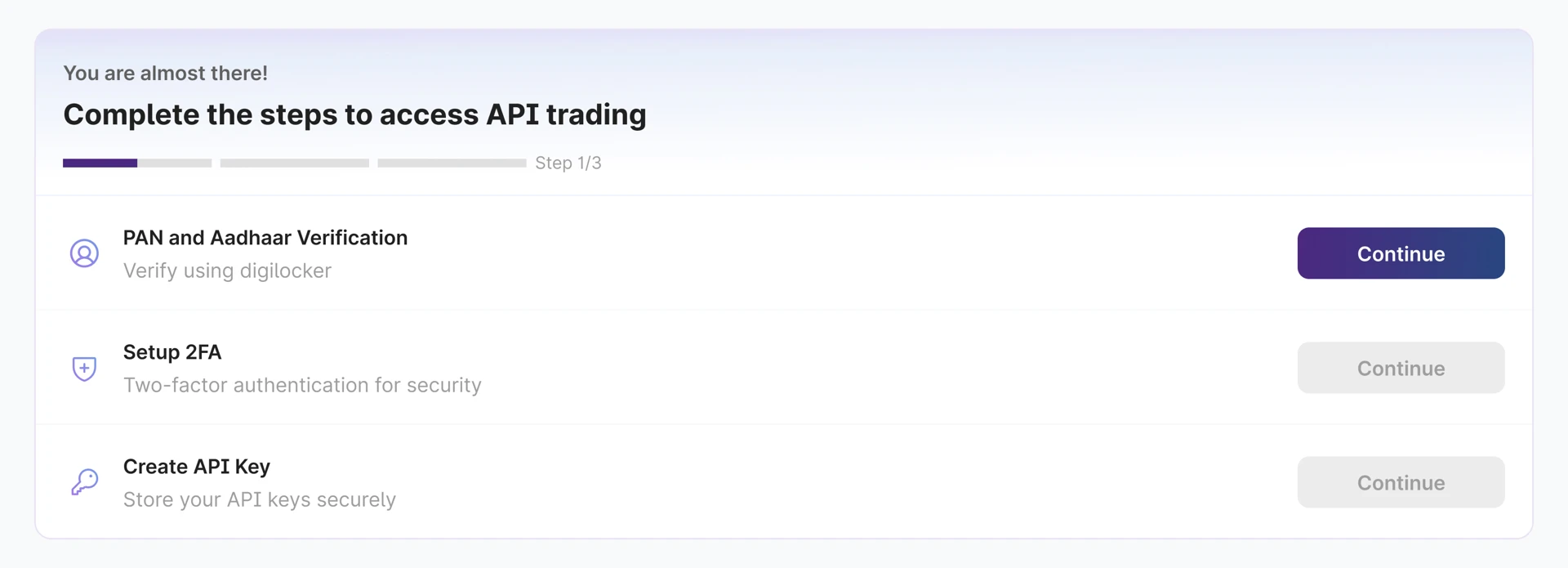

Step 3: Complete your 2FA
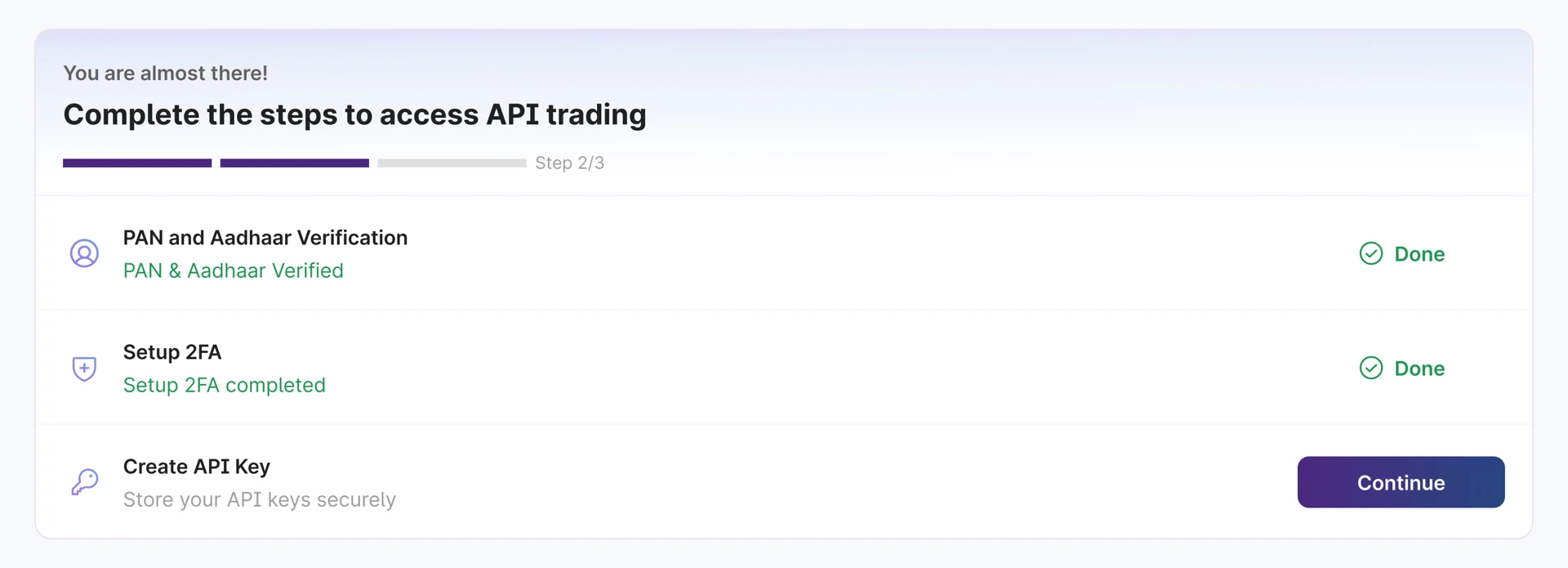

Step 4: Create your API Key
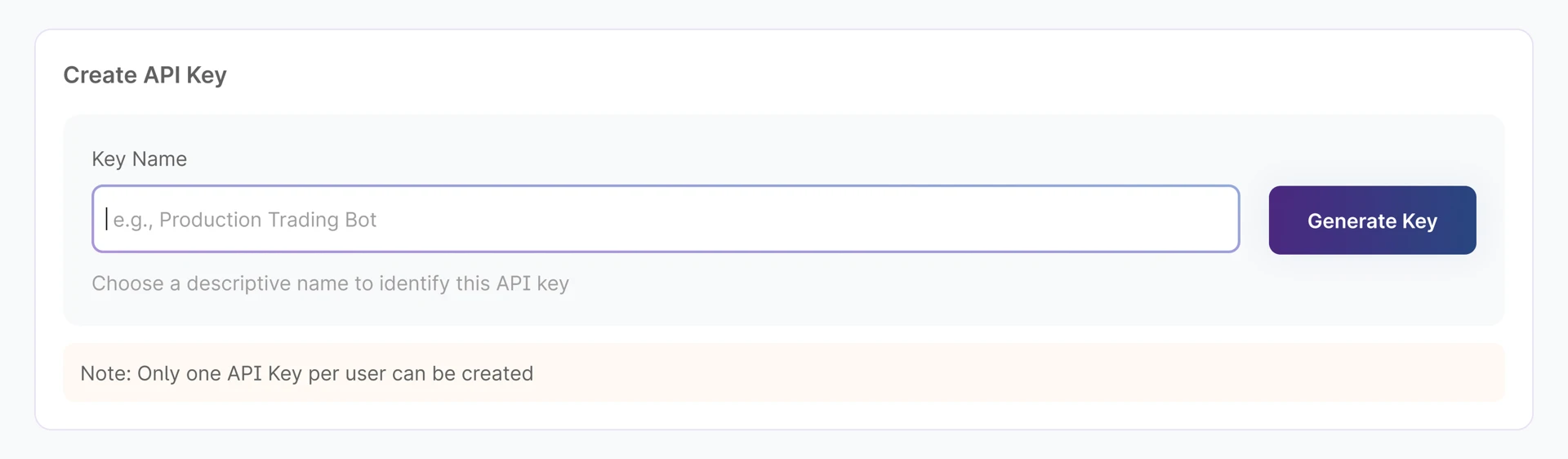

Copy API Key & Secret
Copy both values and store them securely. The secret is displayed only once. Use the API Secret in the X-Authentication header for every request.
Setting Up Mudrex MCP Server with Claude
Prerequisites
Install Node.js
- Download and install Node.js from nodejs.org
- Verify installation by opening Command Prompt and typing
node --version
Configure Claude Desktop
- Open Claude Desktop application
- Go to Settings (gear icon)
- Click on Developer in the left sidebar
- Click Edit Config
- Add the following configuration:
{
  "mcpServers": {
    "mcp-futures-trading": {
      "command": "npx",
      "args": [
        "-y",
        "mcp-remote",
        "https://mudrex.com/mcp",
        "--header",
        "X-Authentication:${API_SECRET}"
      ],
      "env": {
        "API_SECRET": "<your-api-secret>" //only change this line
      }
    }
  }
}
What Can You Do with Mudrex MCP?
Mudrex MCP lets you connect AI agents like Claude Code directly to your Mudrex trading account, enabling you to query account data, manage positions, control risk, and execute trades using natural language. Below are practical use cases that MCP supports:
Available Tools
Orders
| Tool | Description | Confirmation |
|---|---|---|
place_order | Place LONG/SHORT (and optionally attach SL/TP) | Required |
amend_order | Amend an existing order (price / SL / TP) | Required |
cancel_order | Cancel an order | Required |
get_orders | List open orders | - |
get_order | Fetch a specific order by order_id | - |
get_order_history | Historical orders | - |
Positions
| Tool | Description | Confirmation |
|---|---|---|
get_positions | List open positions | - |
close_position | Close a position | Required |
reverse_position | Reverse a position | Required |
get_position_history | Historical positions | - |
Risk Management (SL/TP)
| Tool | Description | Confirmation |
|---|---|---|
place_risk_order | Place stop-loss / take-profit on a position | Required |
amend_risk_order | Amend stop-loss / take-profit on a position | Required |
get_liquidation_price | Compute liquidation price for a position | - |
Leverage & Margin
| Tool | Description | Confirmation |
|---|---|---|
get_leverage | Get current leverage for a contract | - |
set_leverage | Set leverage for a contract | Required |
add_margin | Add margin to a position | Required |
Markets & Account Info
| Tool | Description | Confirmation |
|---|---|---|
list_futures | List all available futures contracts | - |
get_future | Get details for a specific contract (by id or symbol) | - |
get_available_funds | Available funds for trading | - |
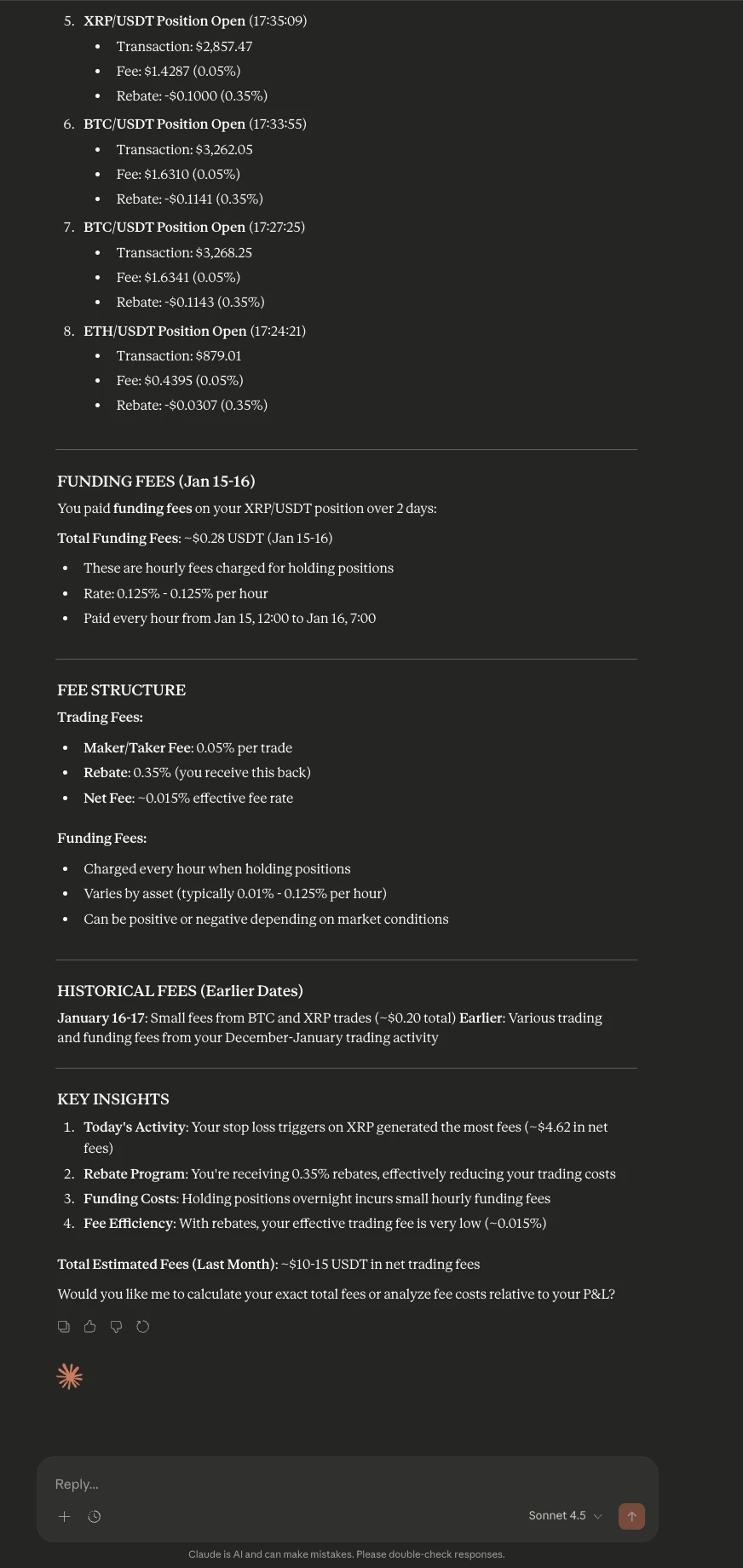
get_fee_history | Fee history | - |
1. View Open Positions
Show all open positions on your account.
Show all my open positions on Mudrex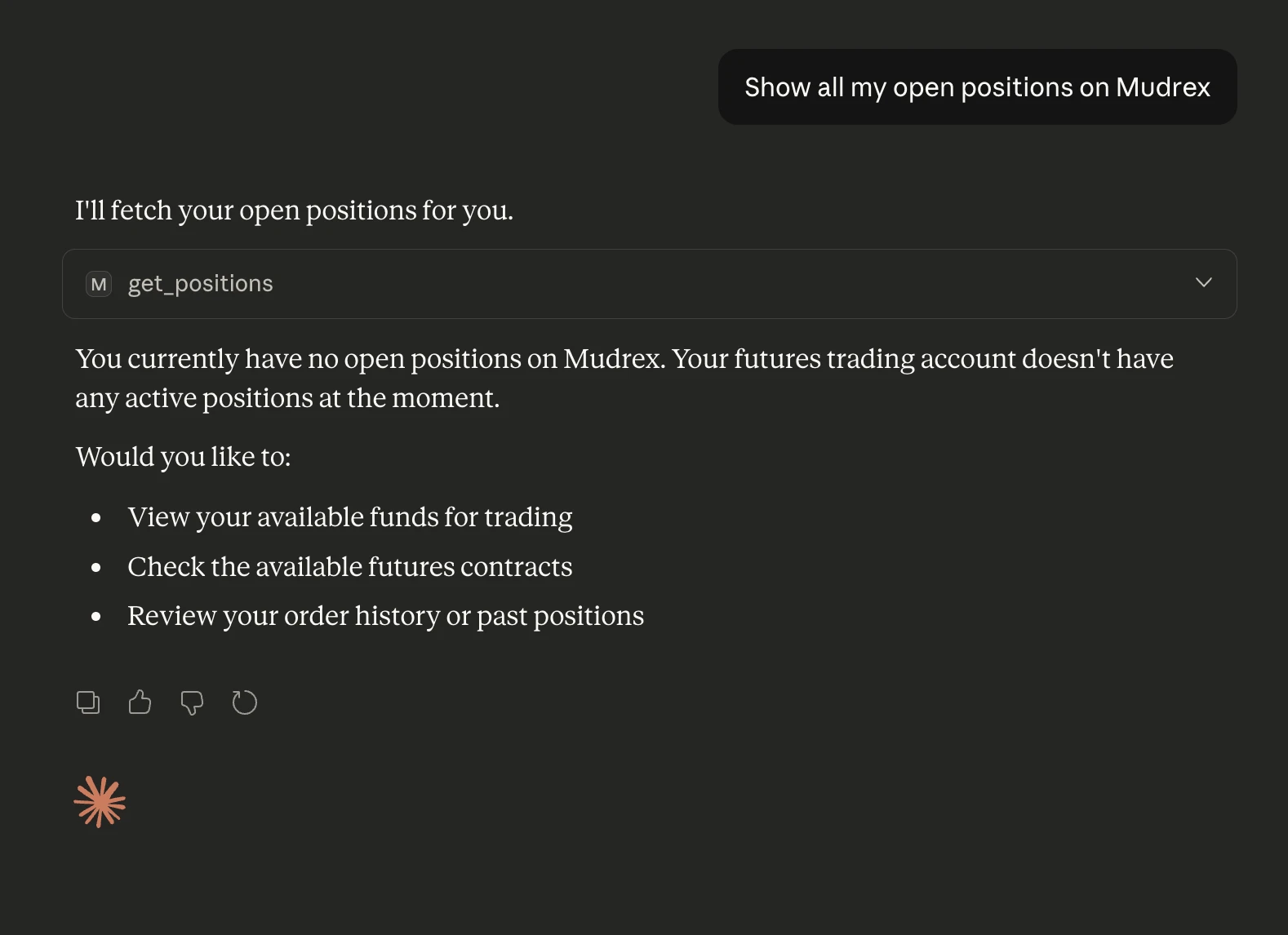
2. Place a New Order (Long or Short)
Open a new position with specified parameters.
Place a LONG order on ETH/USDT for 200 USDT with 5x leverage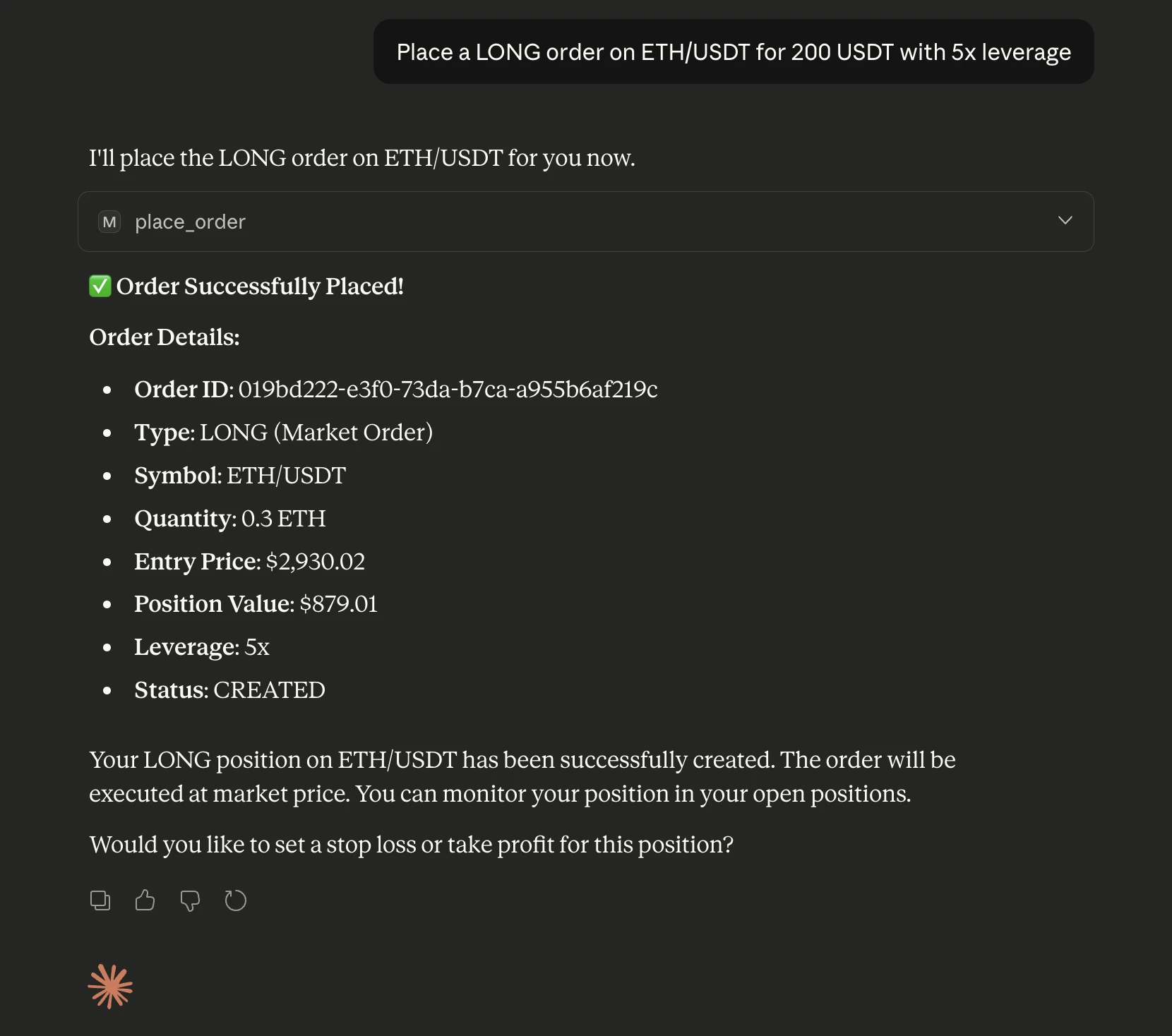
3. Place an Order with Stop-Loss and Take-Profit
Open an order with predefined risk and reward levels.
Open a SHORT on BTC/USDT for 300 USDT with stop loss at 2% and take profit at 4% with Leverage 10x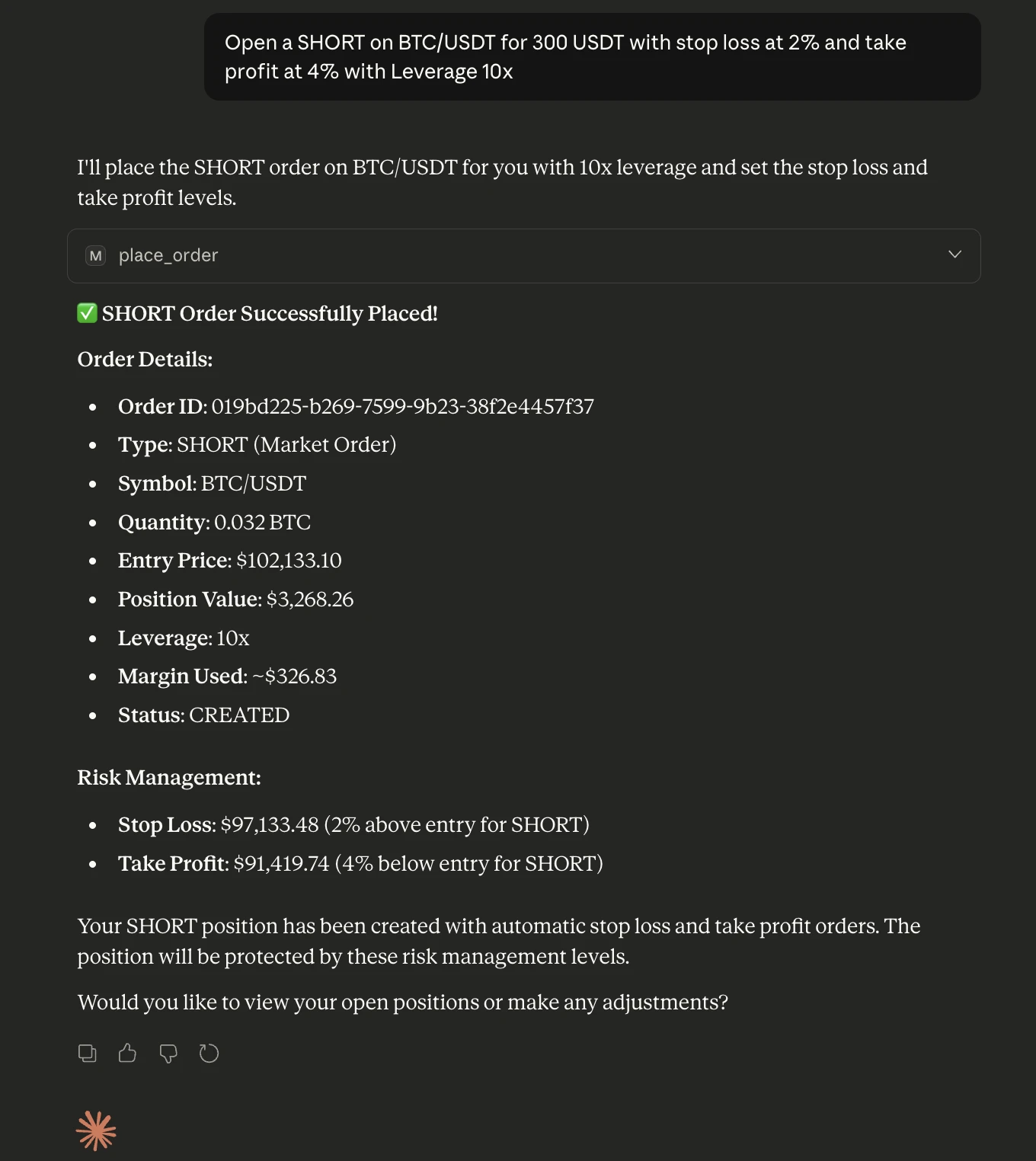
4. View Open Orders
Track pending or partially filled orders.
List all my open orders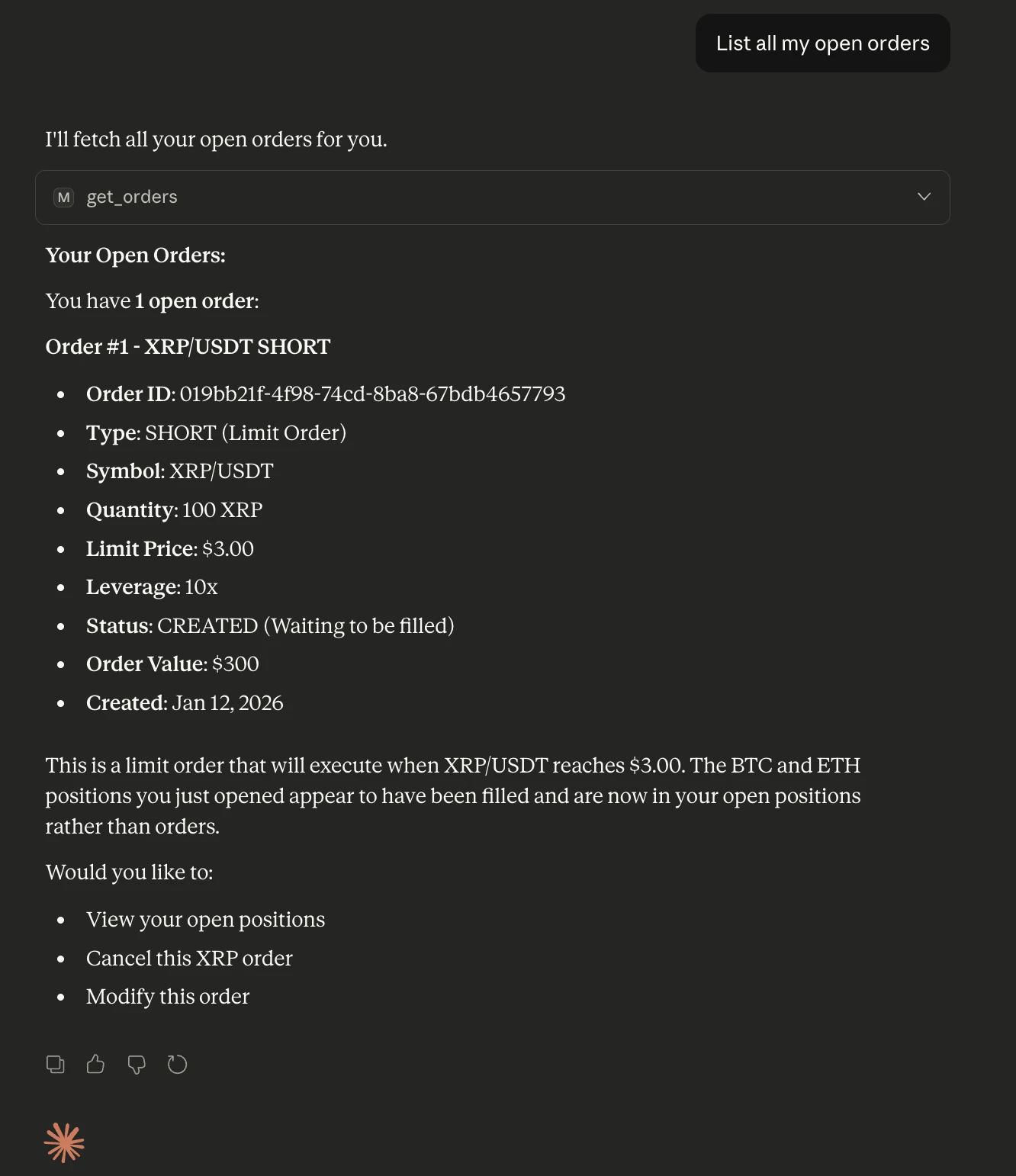
5. Modify an Existing Order
Adjust price, stop-loss, or take-profit based on market movement.
Amend my XRP/USDT order to move stop loss to 1.5% above entry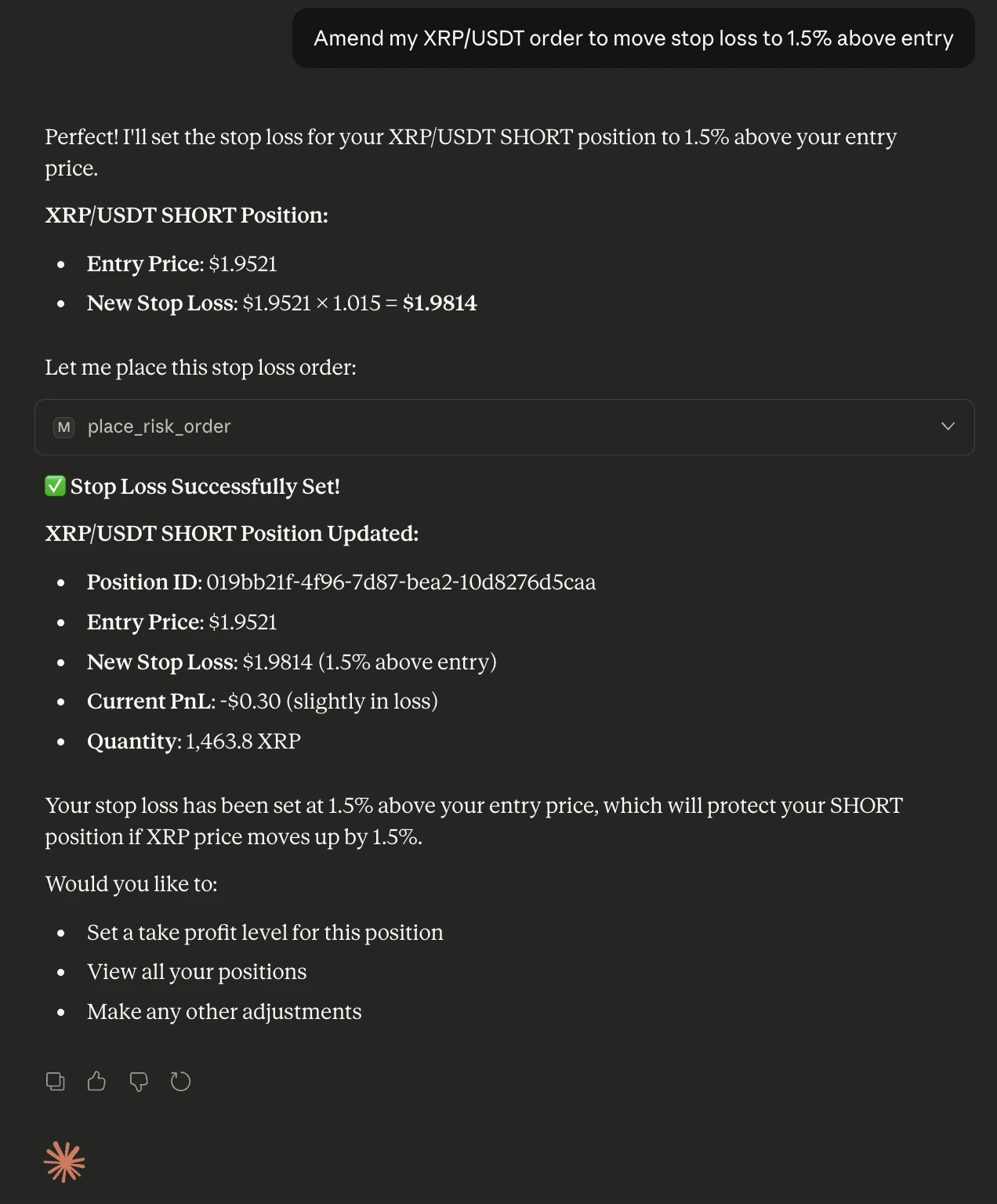
6. Cancel an Open Order
Remove unwanted or stale orders instantly.
Cancel my open XRP/USDT order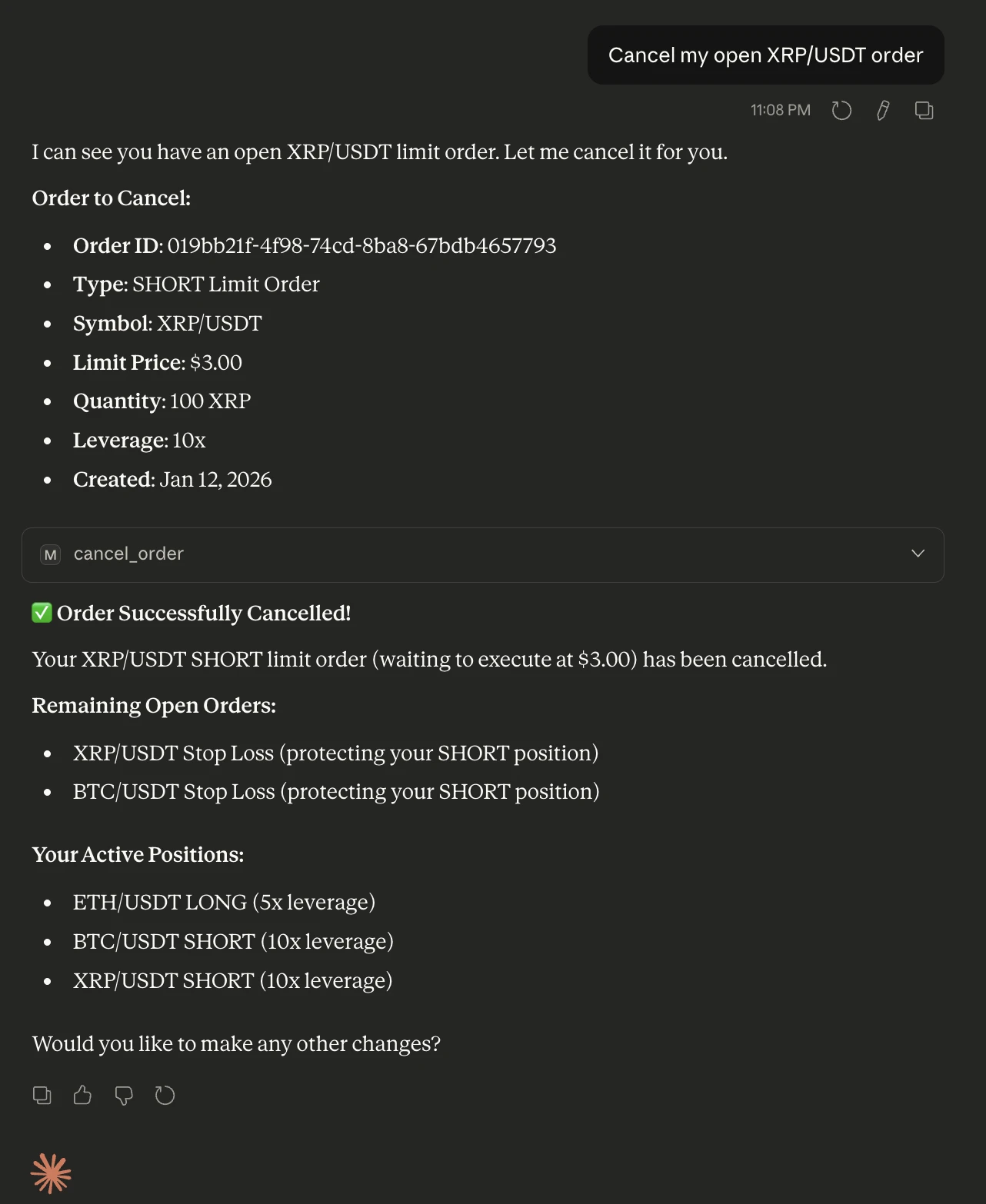
7. Close an Open Position
Exit a trade fully when your strategy or market view changes.
Close my BTC/USDT position at market price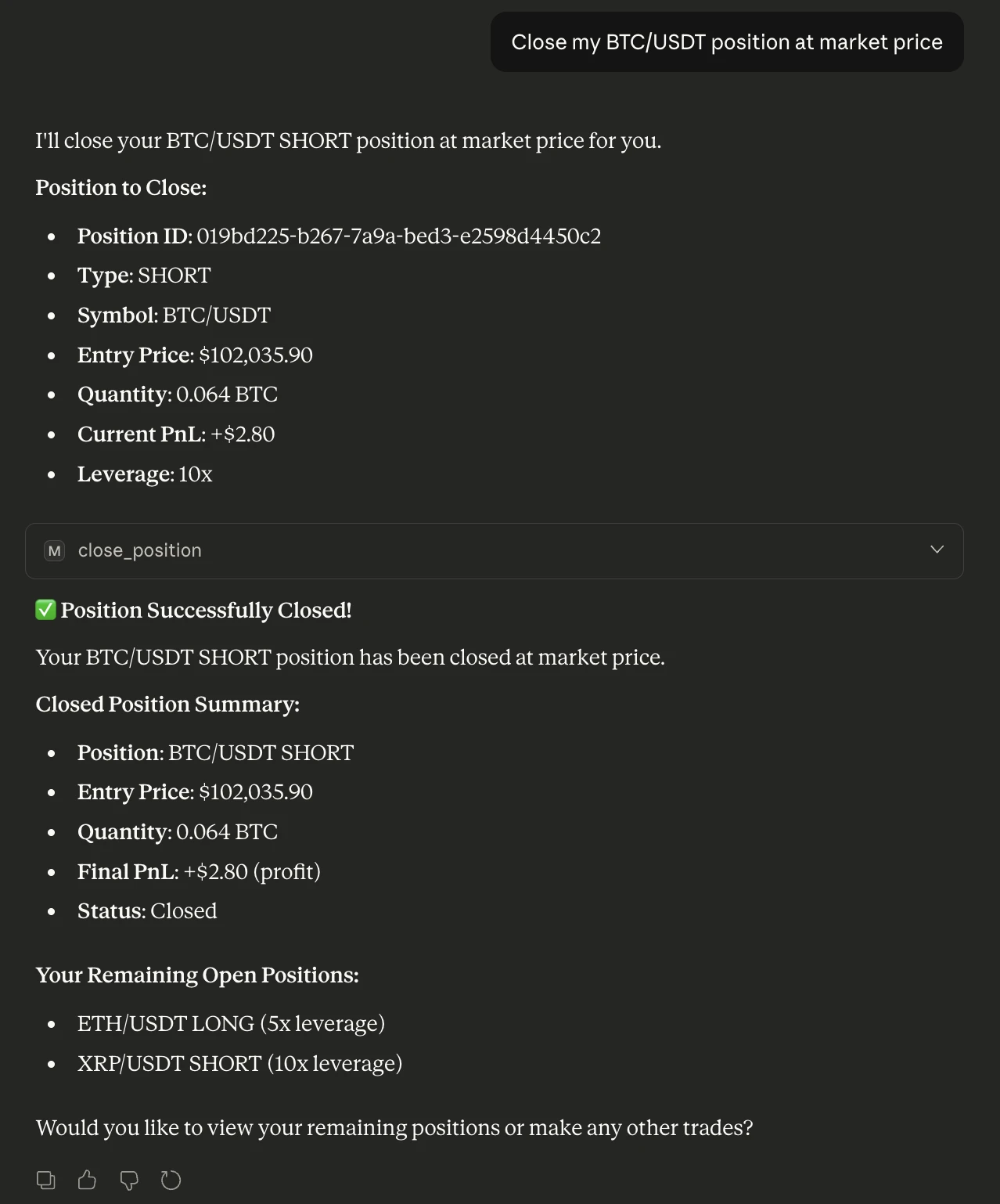
8. Reverse a Position
Flip from long to short (or vice versa) in a single action.
Reverse my ETH/USDT position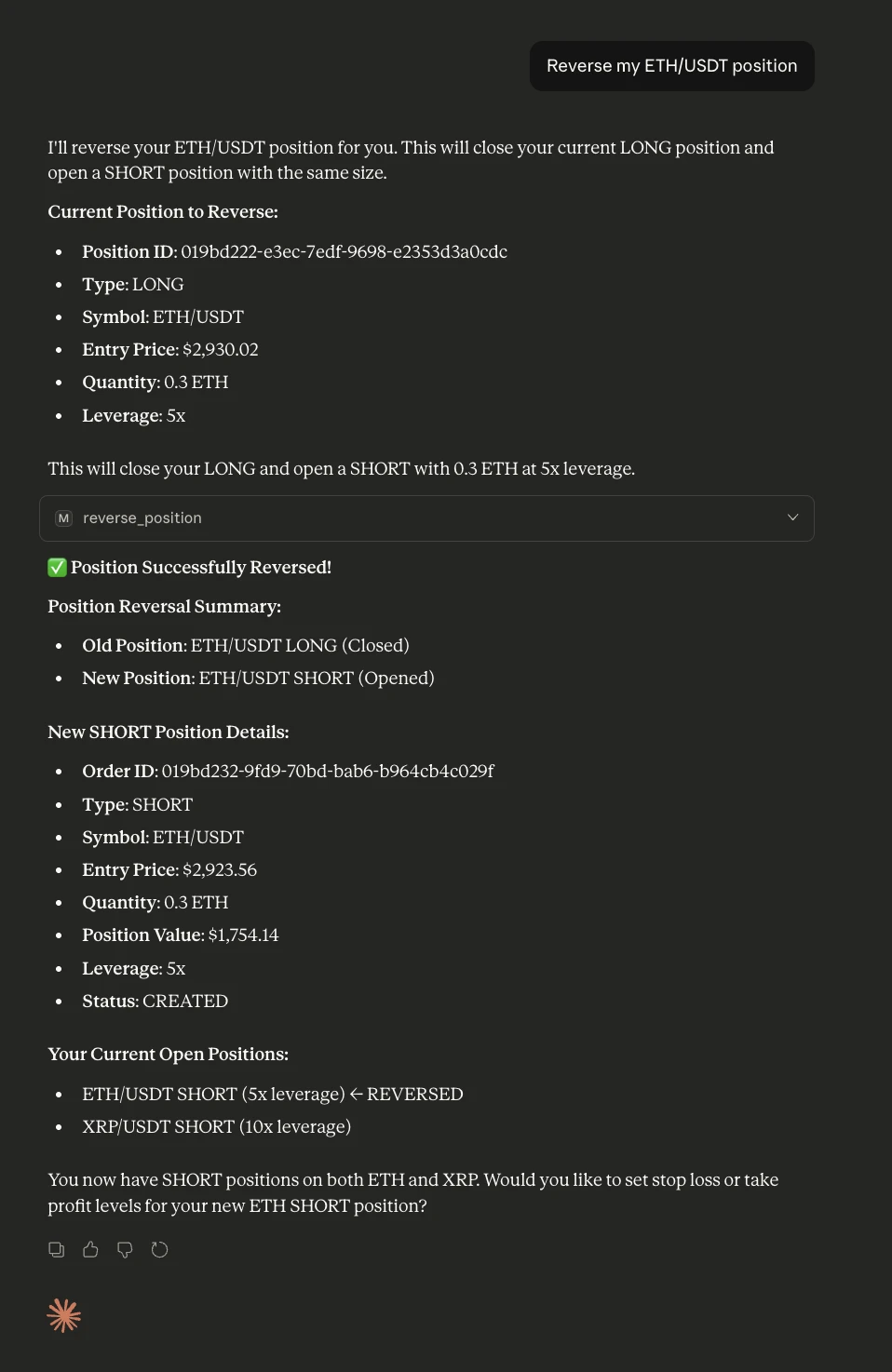
9. Add Stop-Loss or Take-Profit to an Existing Position
Apply risk management to already open trades.
Add a stop loss at 2% and take profit at 5% to my XRP/USDT position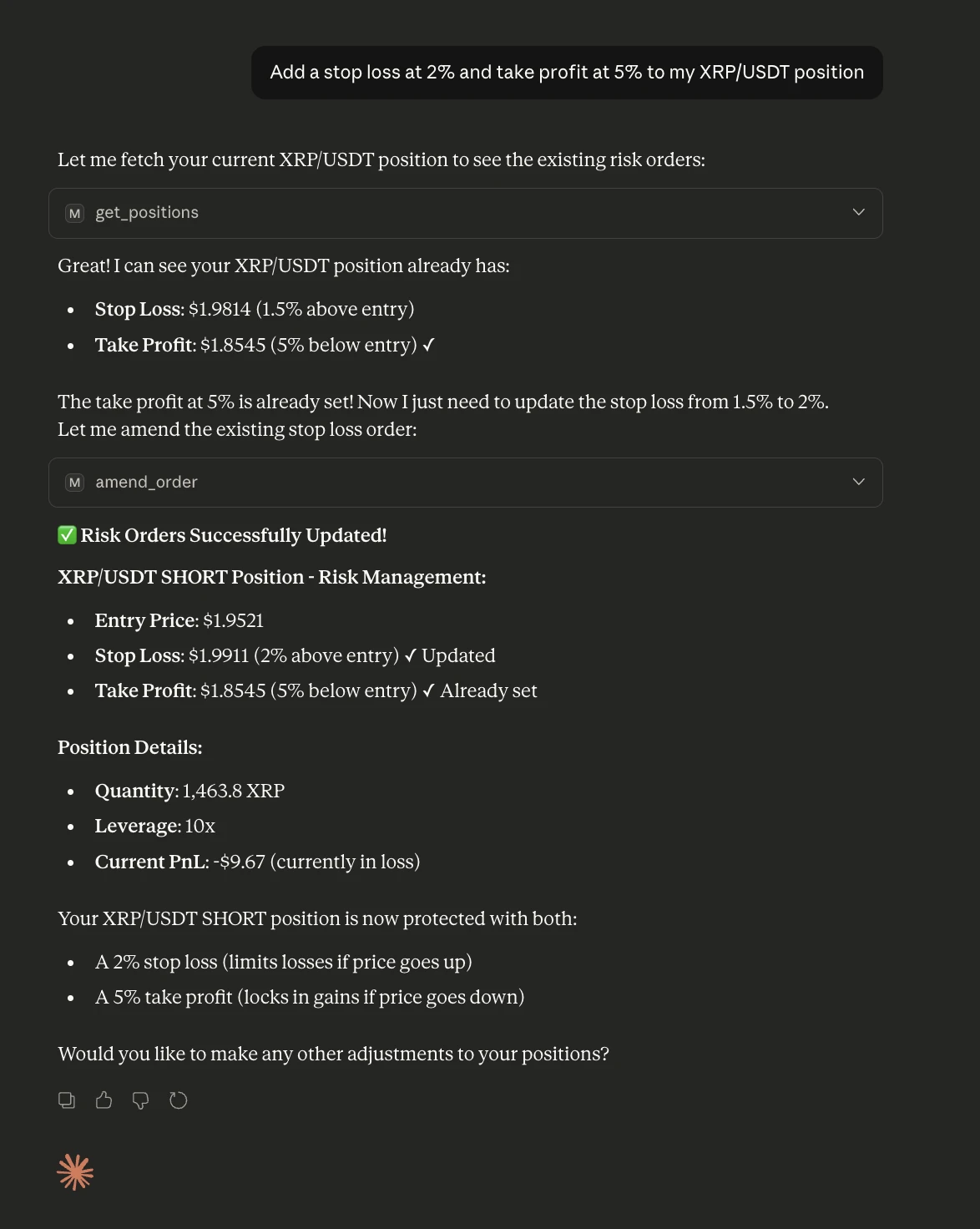
10. Modify Stop-Loss or Take-Profit
Lock profits or reduce risk as the trade moves in your favor.
Move my ETH/USDT take profit to 6%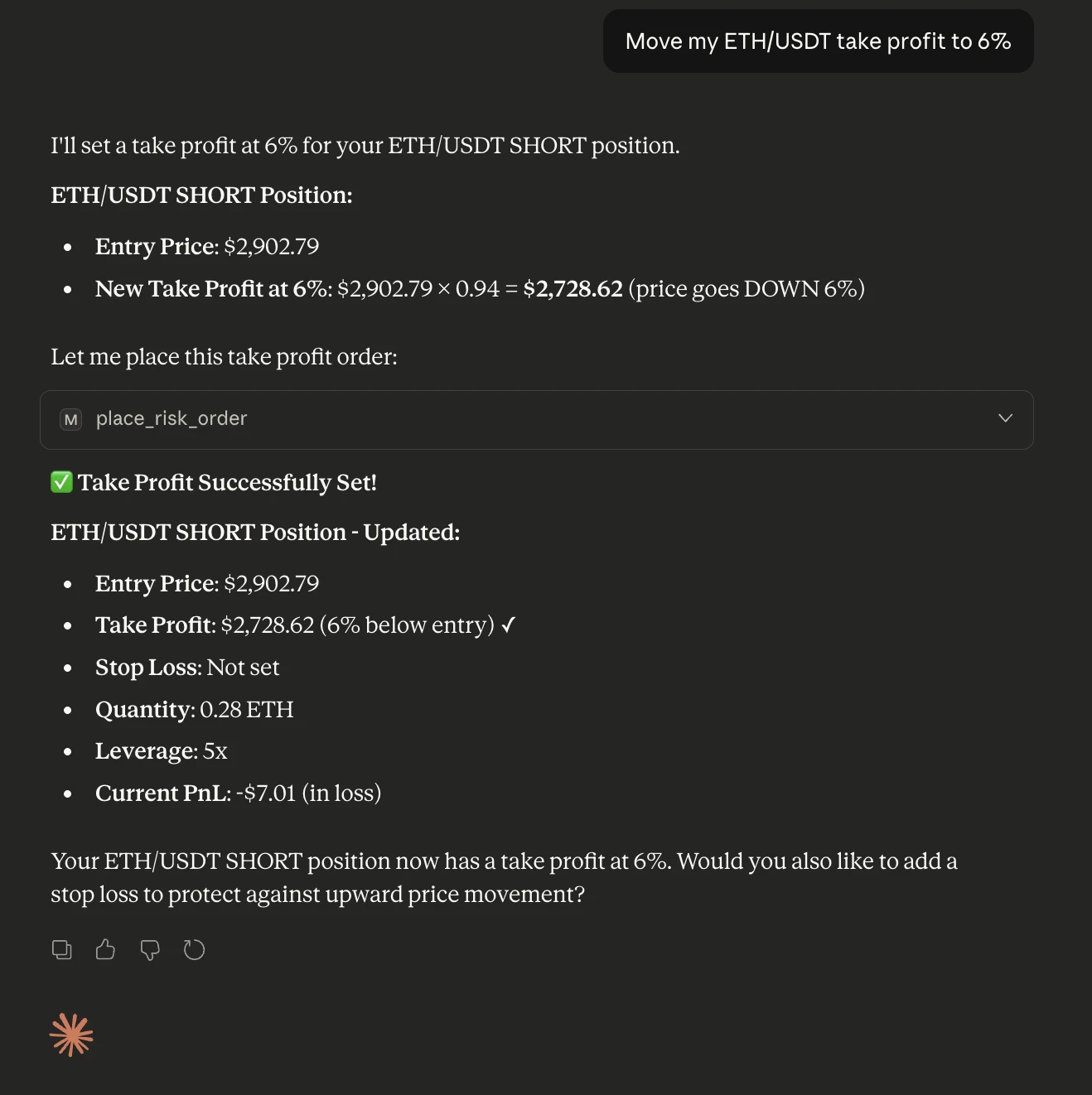
11. Check Liquidation Price
Understand downside risk and margin safety.
What is the liquidation price for my ETH/USDT position?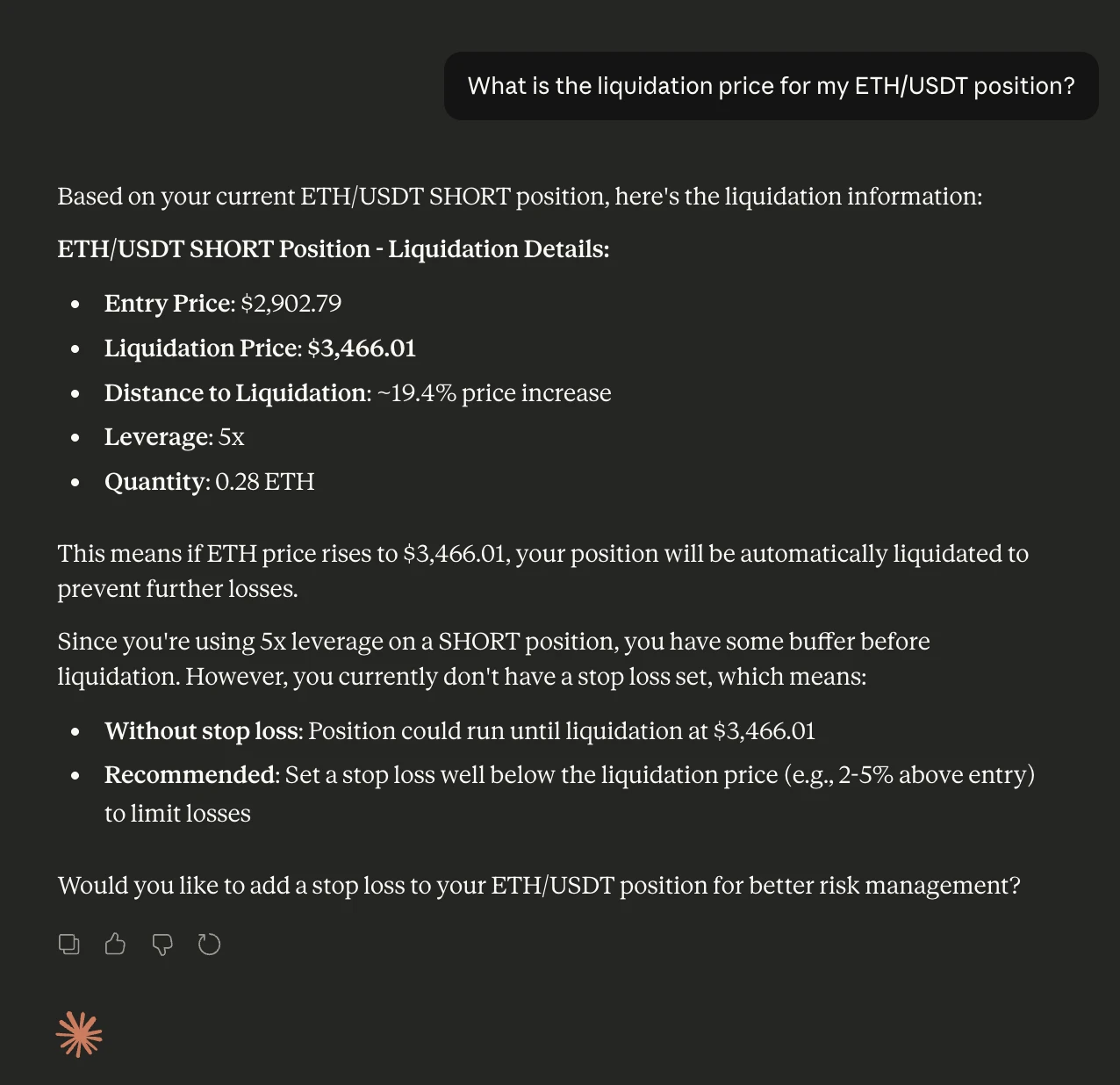
12. Check Current Leverage
Review leverage settings before adjusting exposure.
What is my current leverage on ETH/USDT?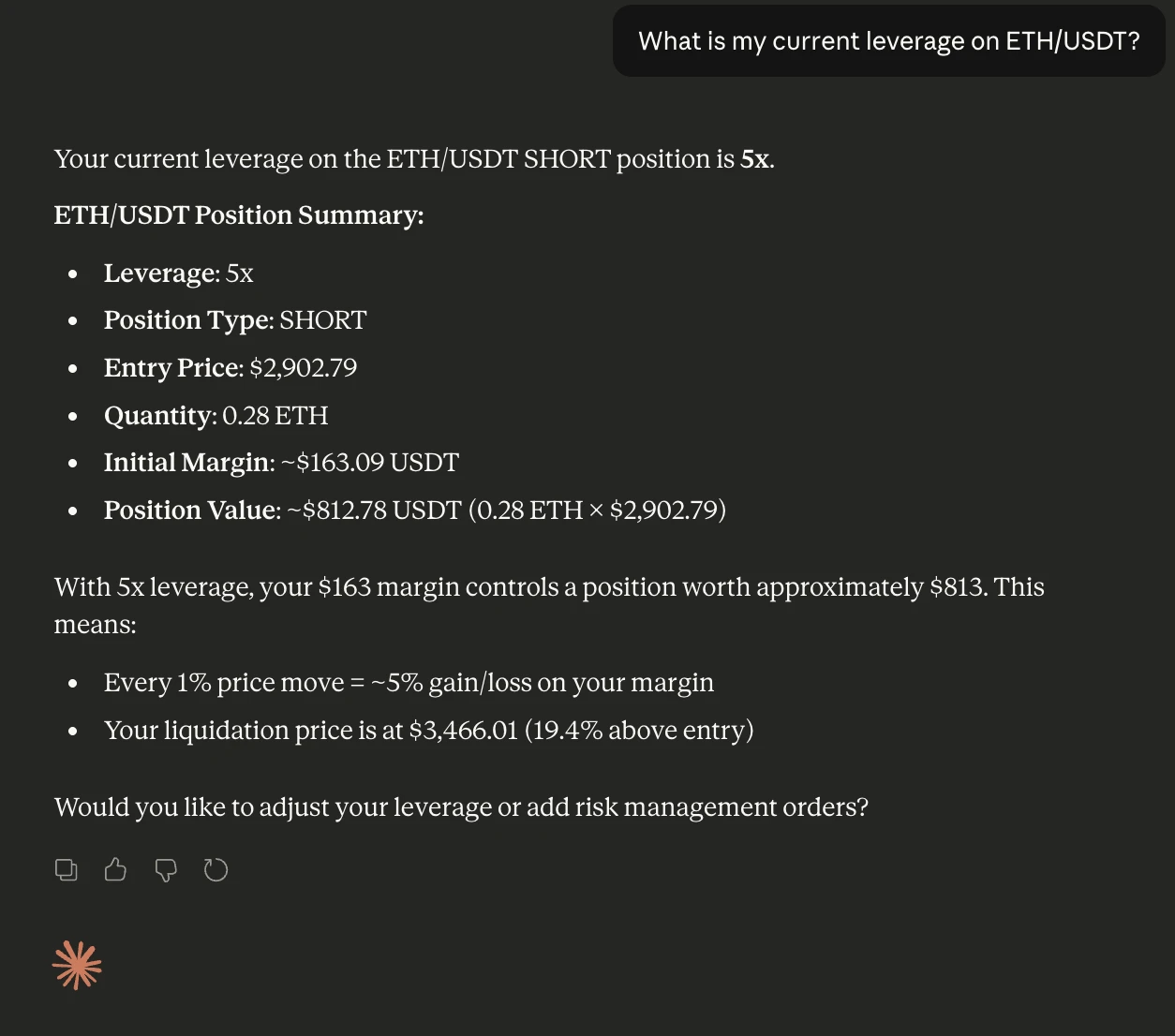
13. Change Leverage
Increase or reduce leverage based on risk appetite.
Set leverage to 10x for ETH/USDT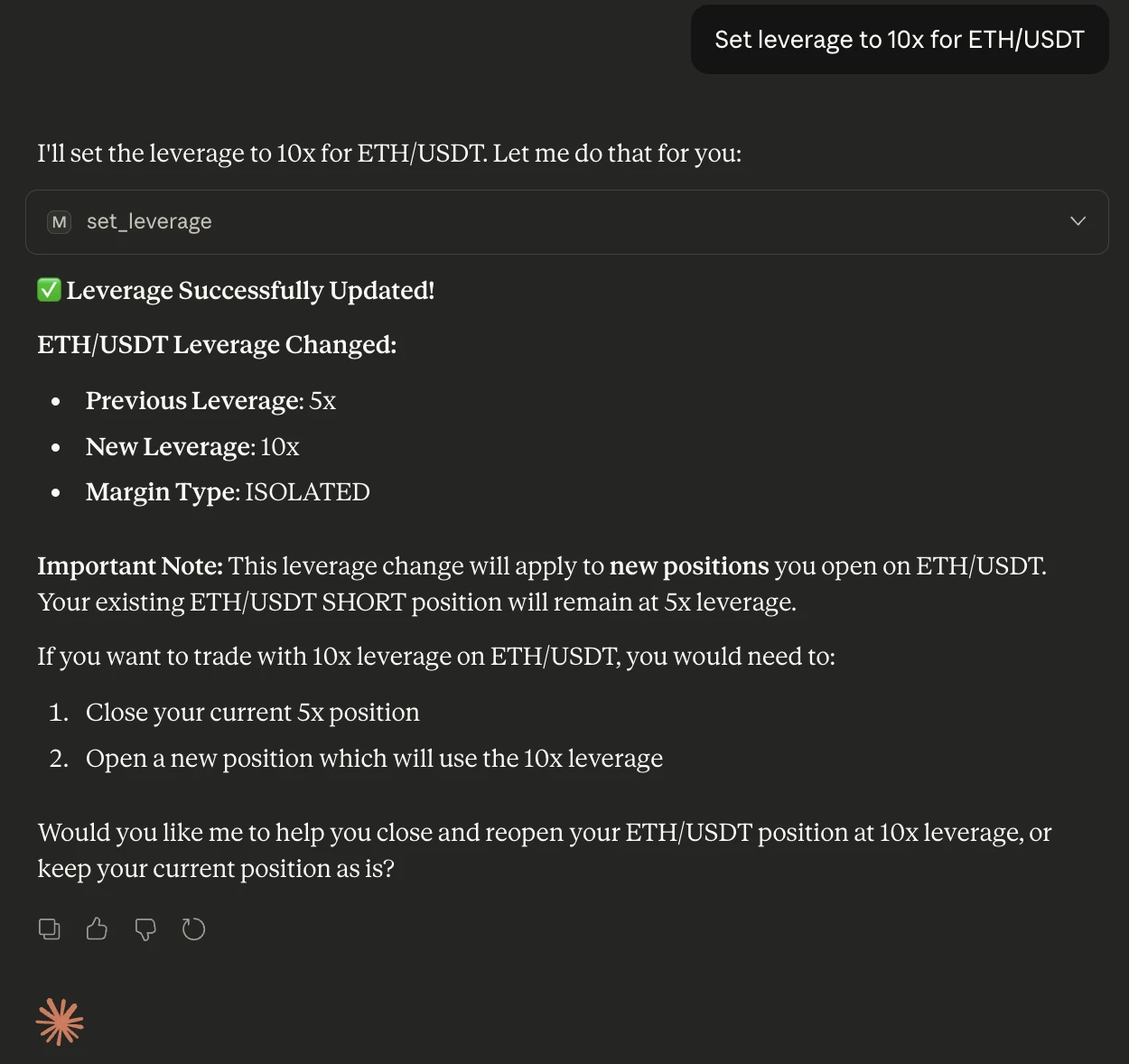
14. Add Margin to a Position
Reduce liquidation risk without closing the position.
Add 100 USDT margin to my ETH/USDT position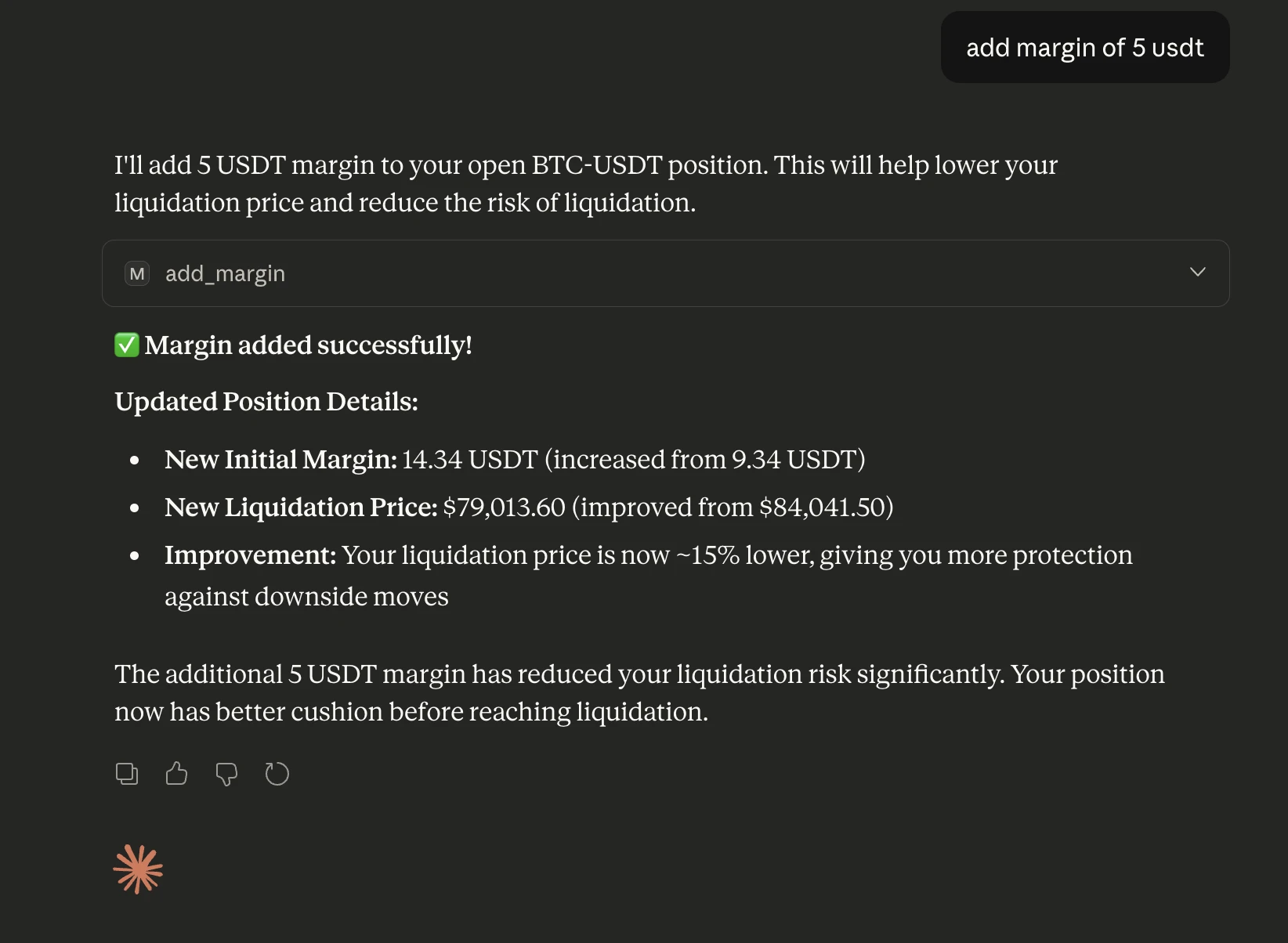
15. View Available Funds
Check how much balance is available for new trades.
How much available balance do I have for futures trading?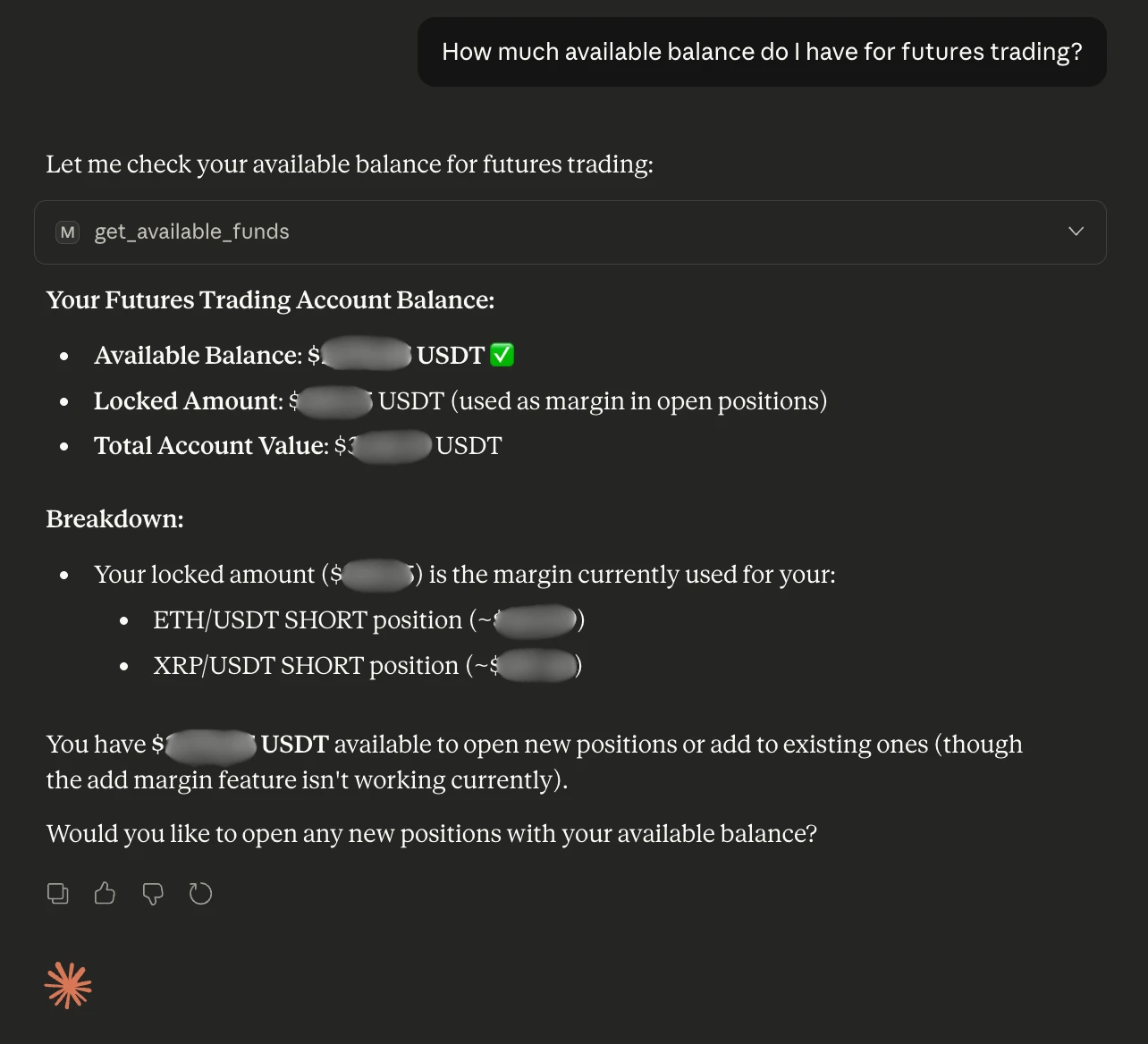
16. Get Contract Details
Understand contract specifications before trading.
Get details for the BTC/USDT futures contract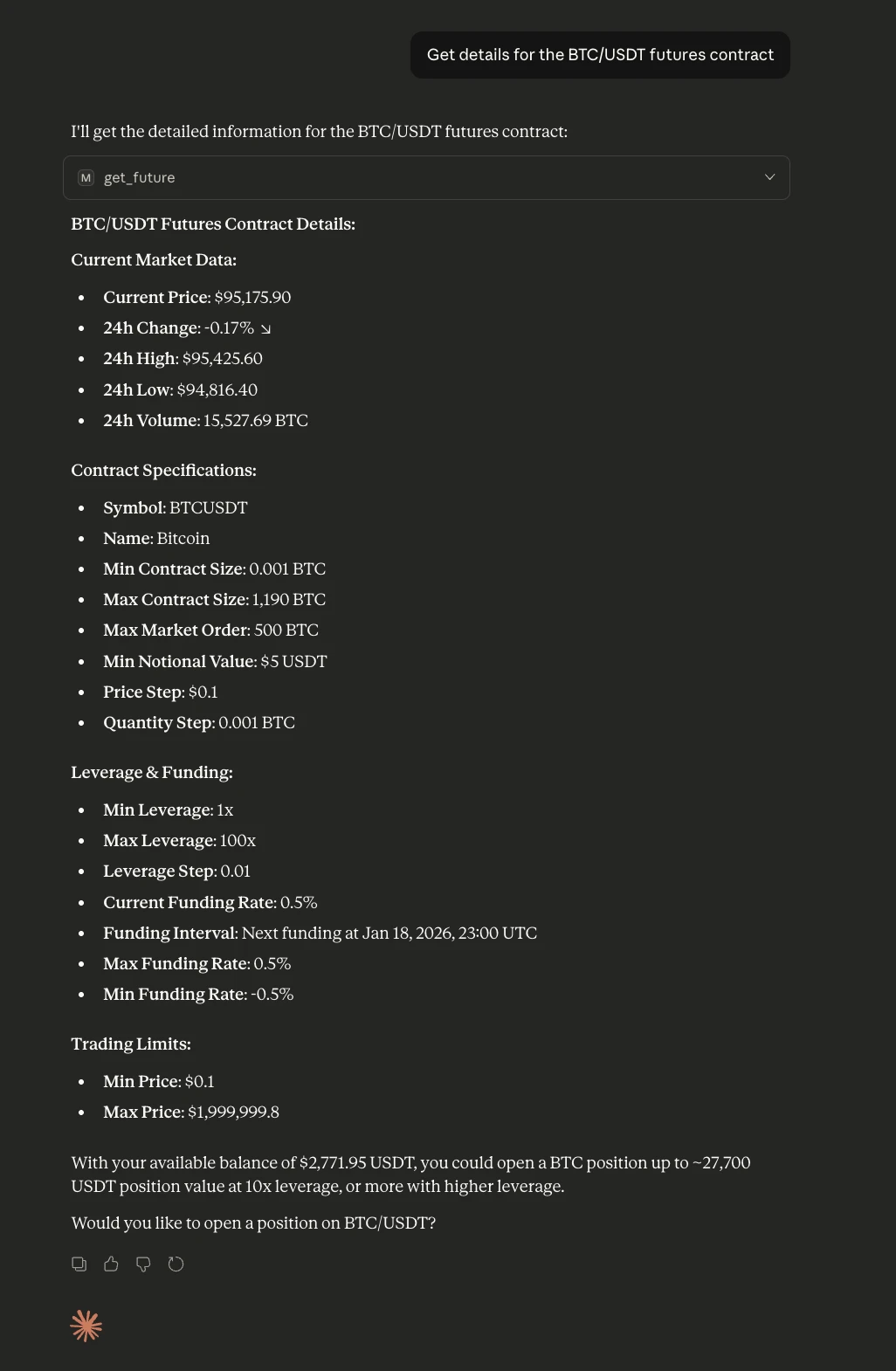
17. View Order History
Review past trading activity for analysis or record keeping.
Show my order history for the last 30 days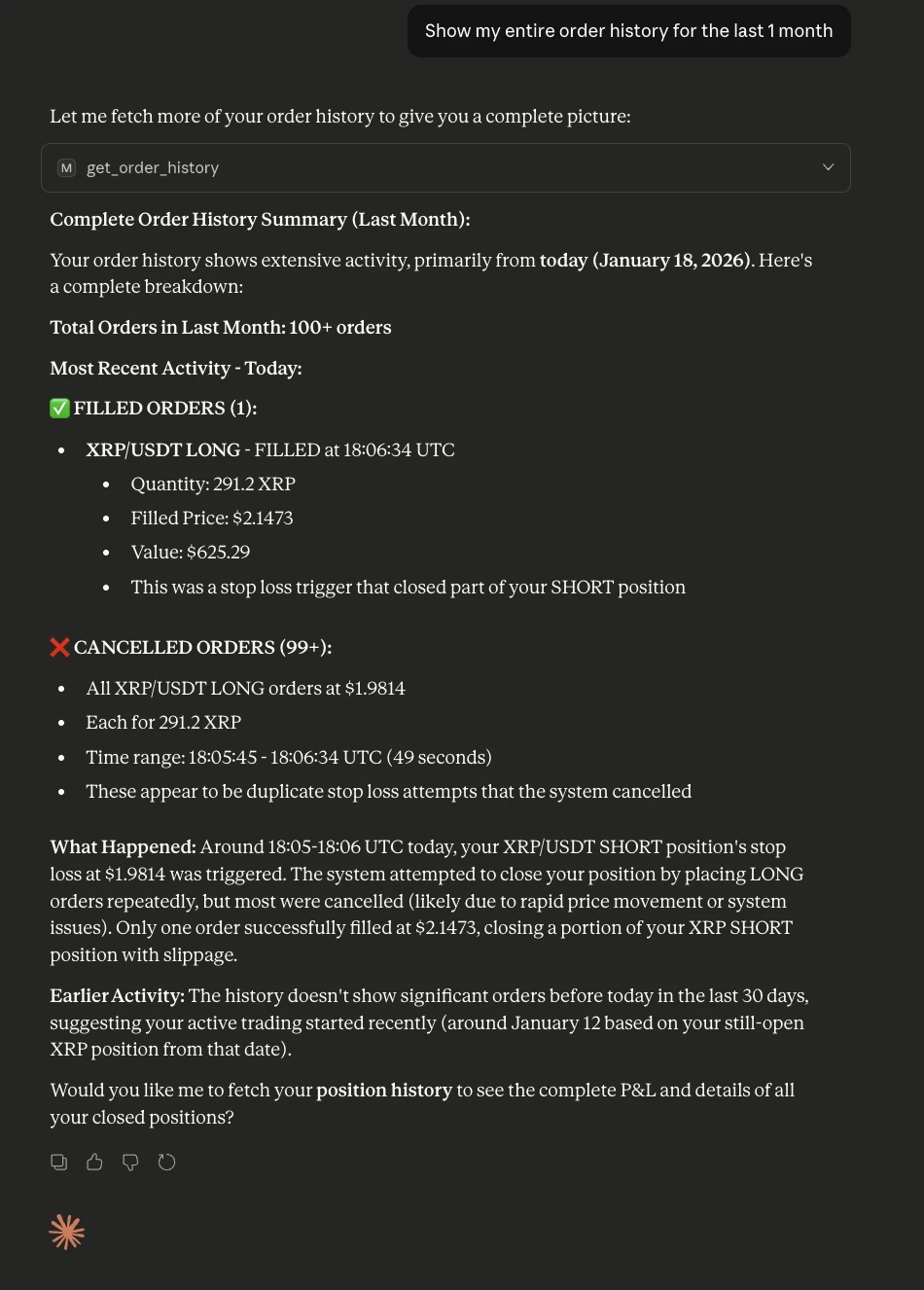
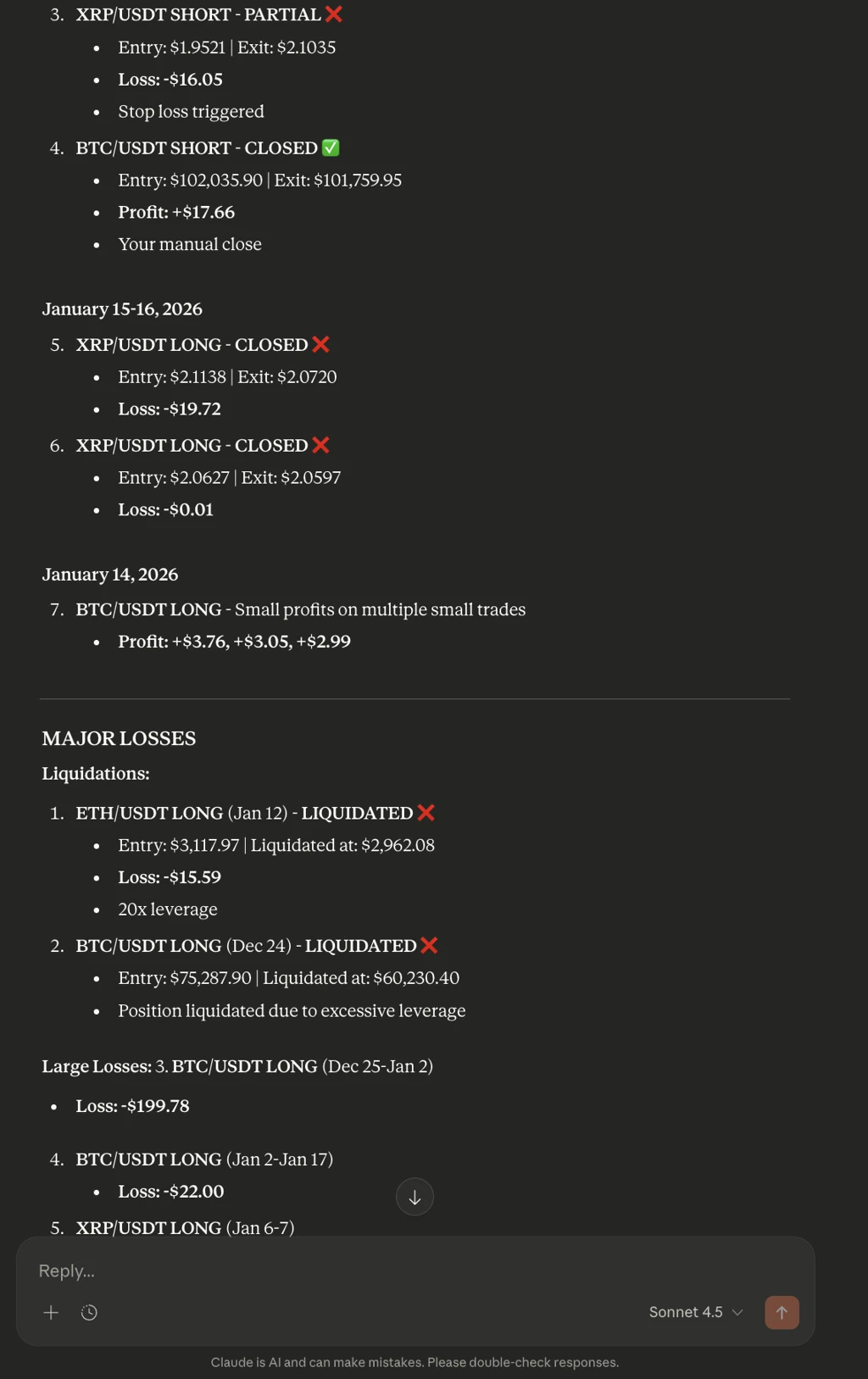
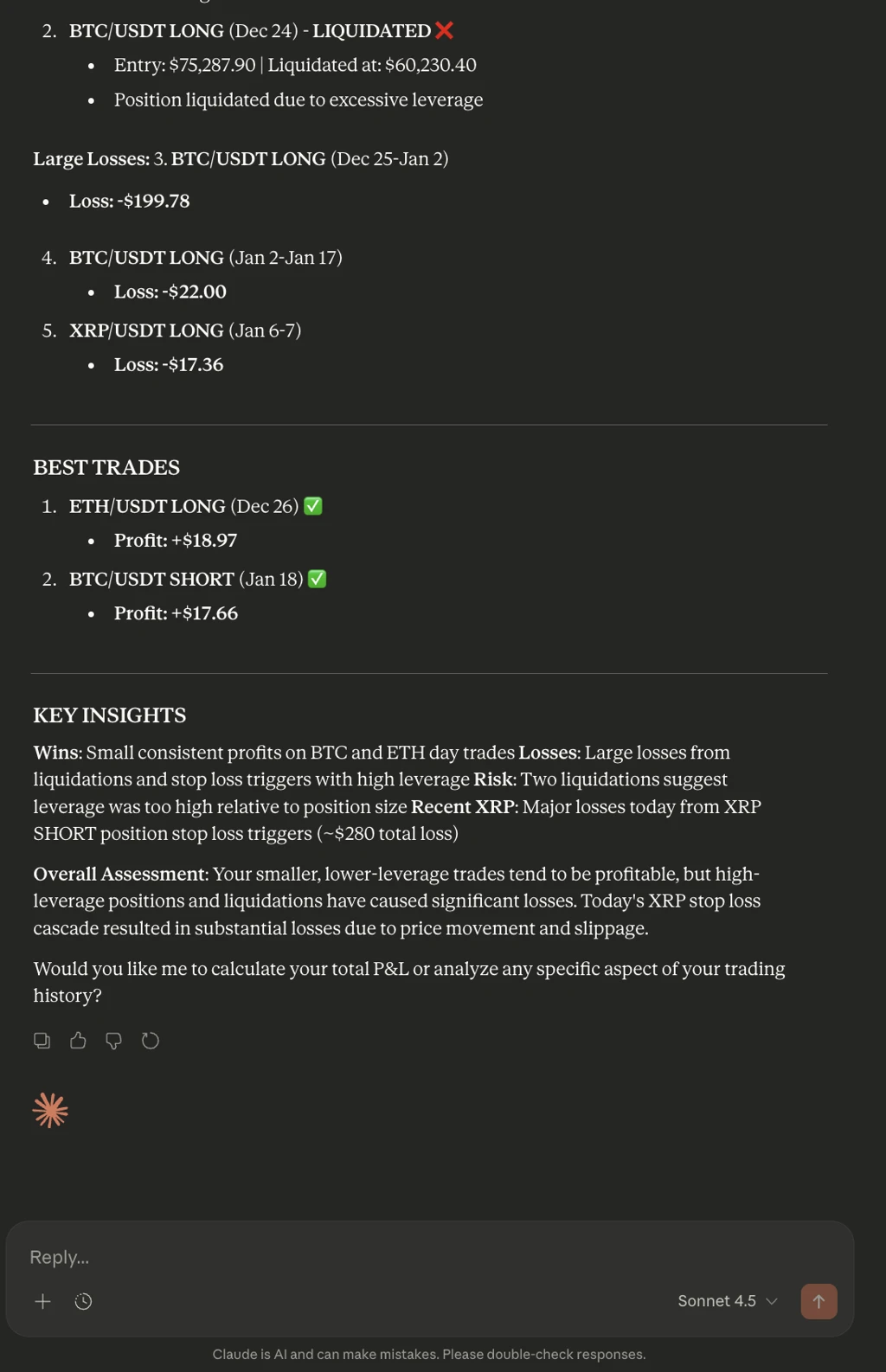
18. View Position History
Analyze past positions and performance.
Show my closed positions history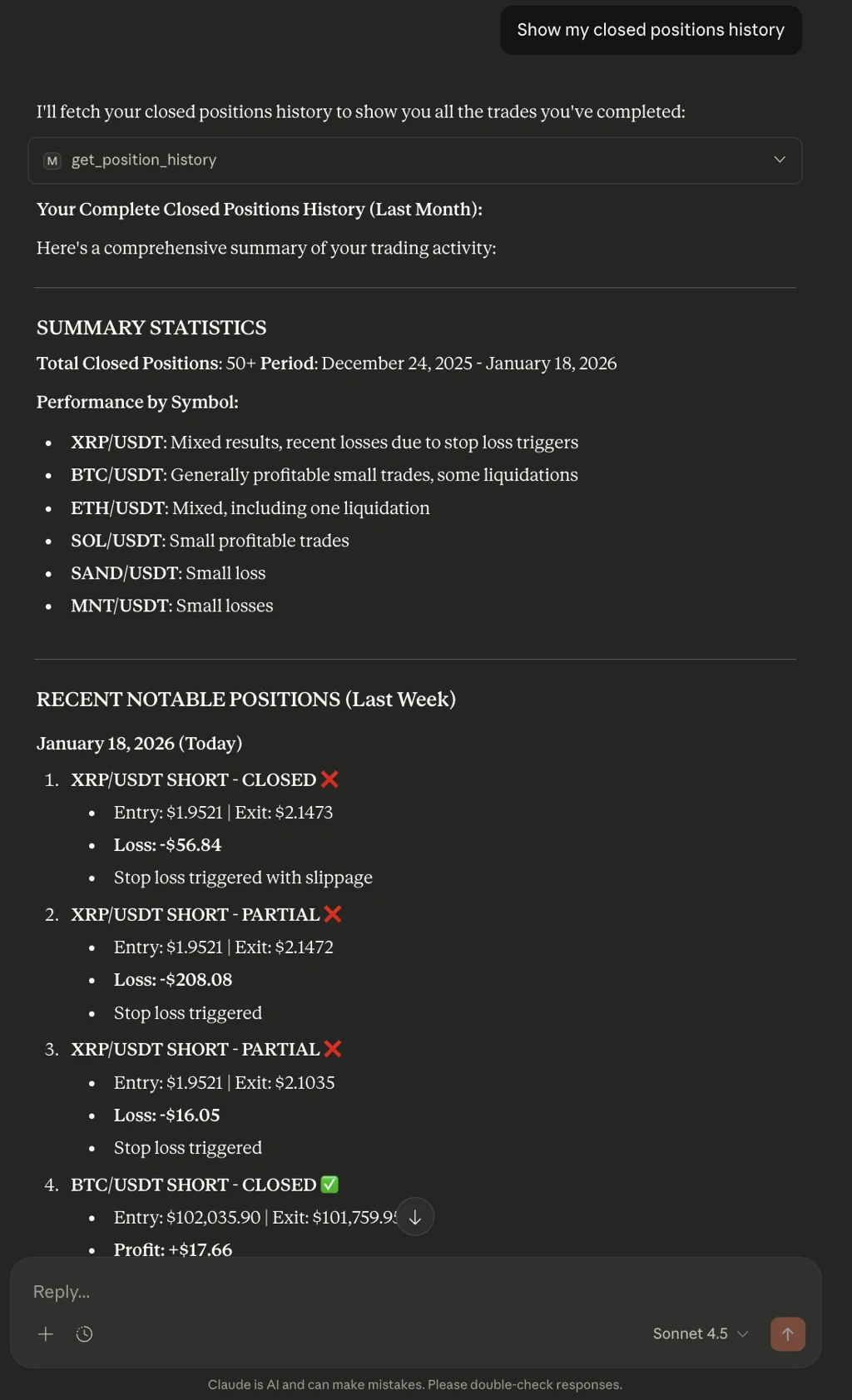
19. View Fee History
Track fees paid across trades.
Show my trading fee history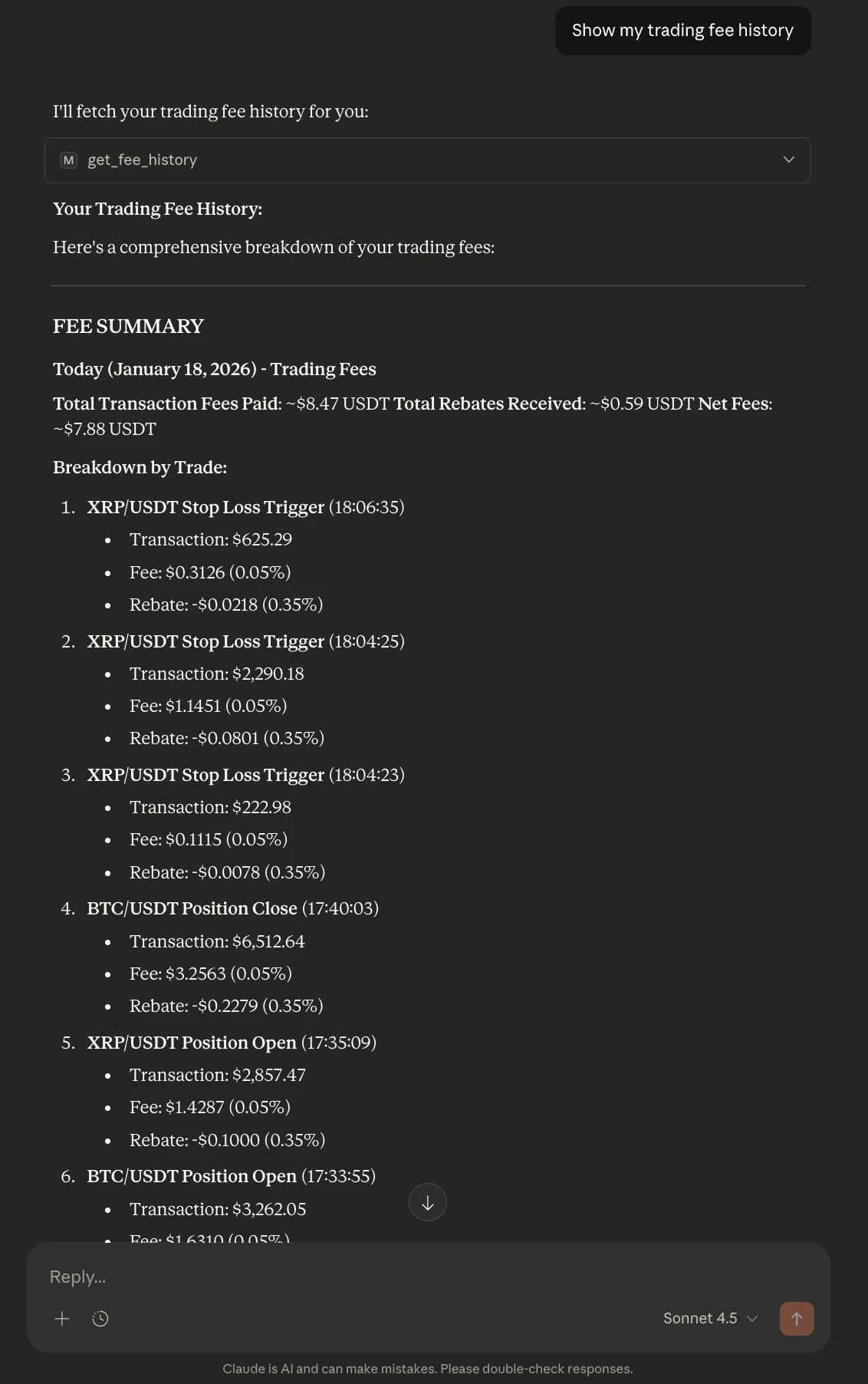
20. Explore Available Futures Contracts
Discover tradable futures pairs on Mudrex.
List all available futures contracts on Mudrex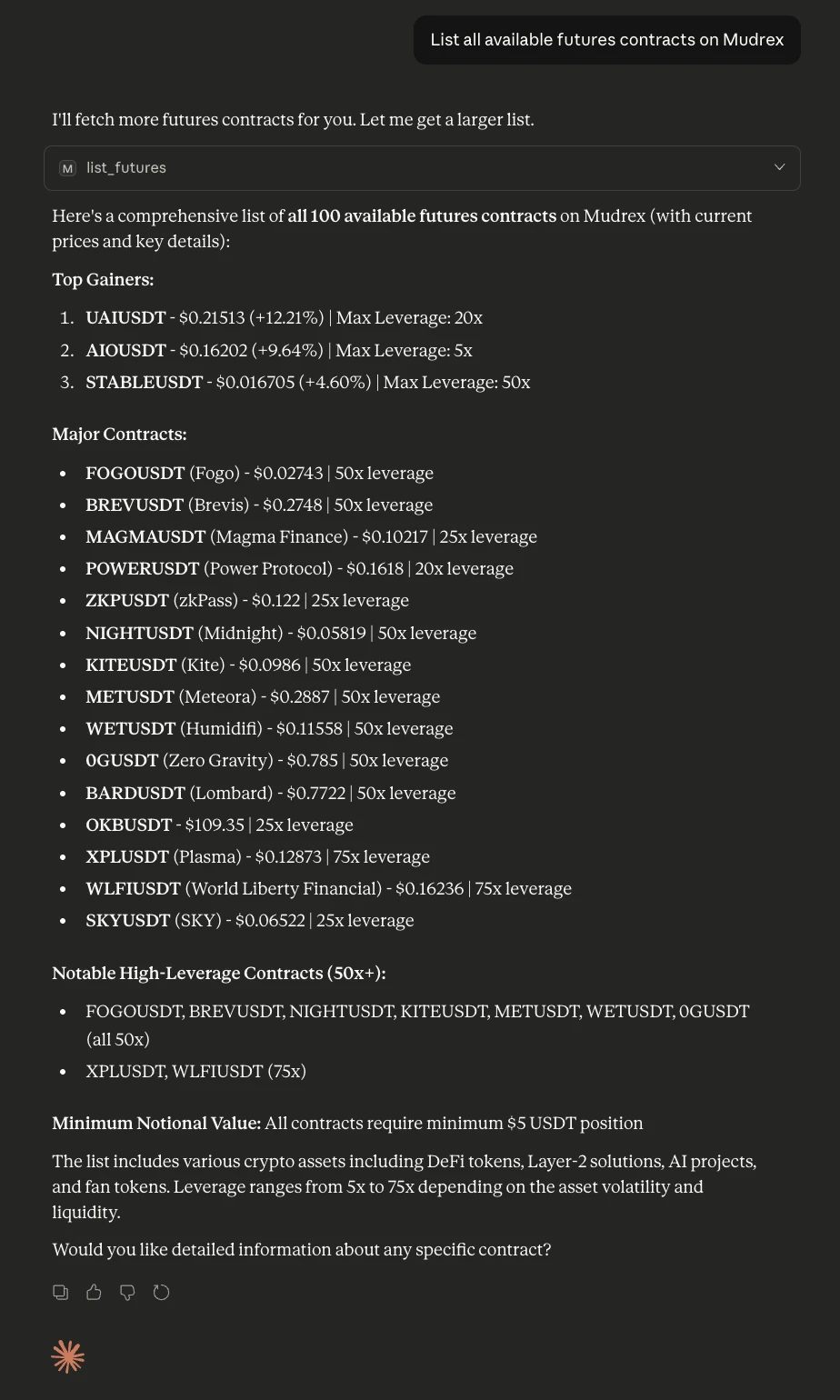
Updated 8 months ago